Getting started
Adding a child
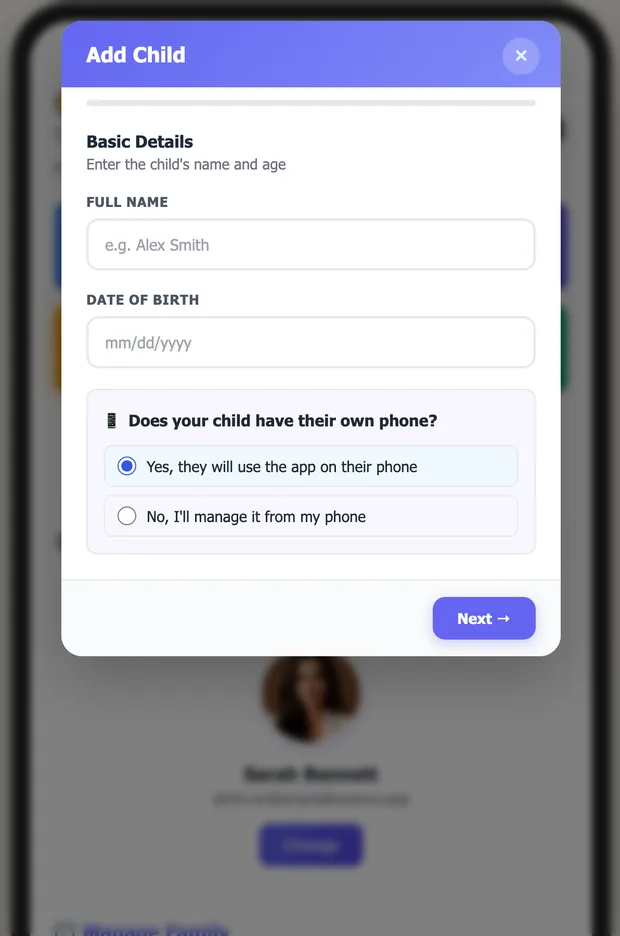
Open Settings and tap + Add Child. The wizard asks for the child's name and date of birth, and then the question that shapes everything else: does this child have their own phone?
Choosing how they sign in
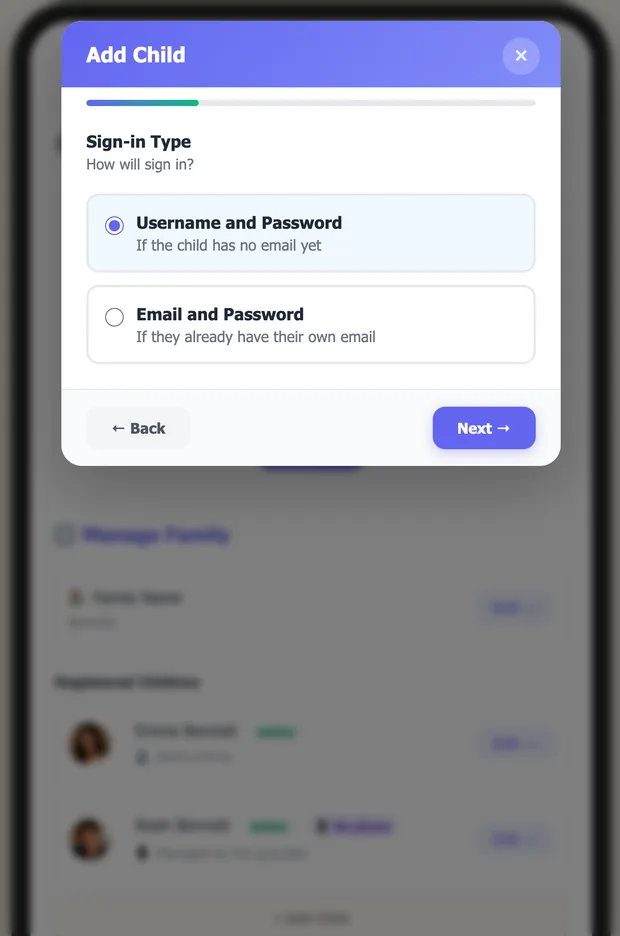
If the child has no e-mail address, pick Username and Password — the app generates a username you can change. Children with their own e-mail can use it to sign in.
Their credentials
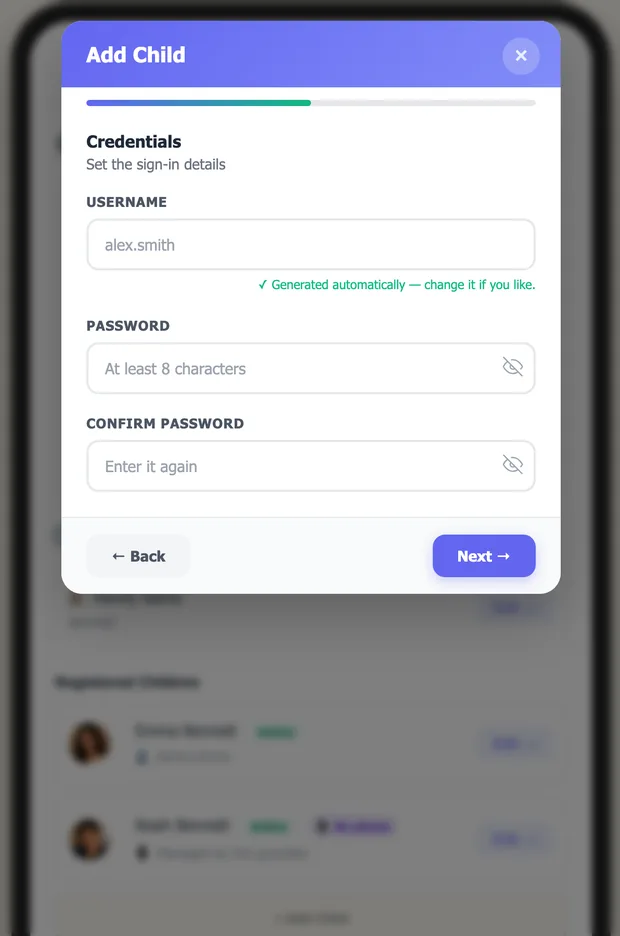
Set a password of at least 8 characters. Write it down somewhere before finishing: you will need it the first time your child signs in, and only you can reset it later.
Setting up chores
The chore list
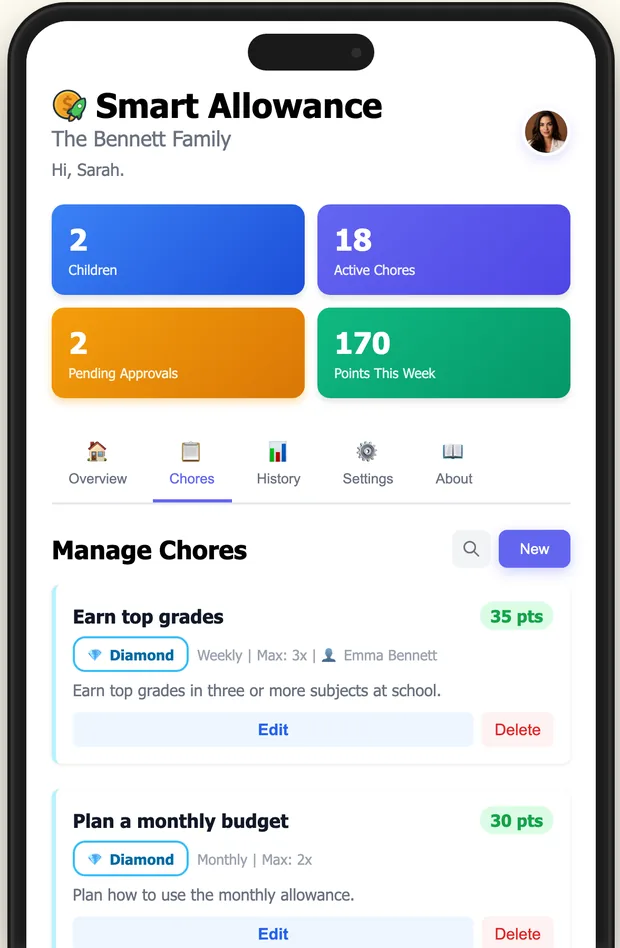
Chores shows everything your family has set up, with points, level and how often each one can be done.
Creating a chore
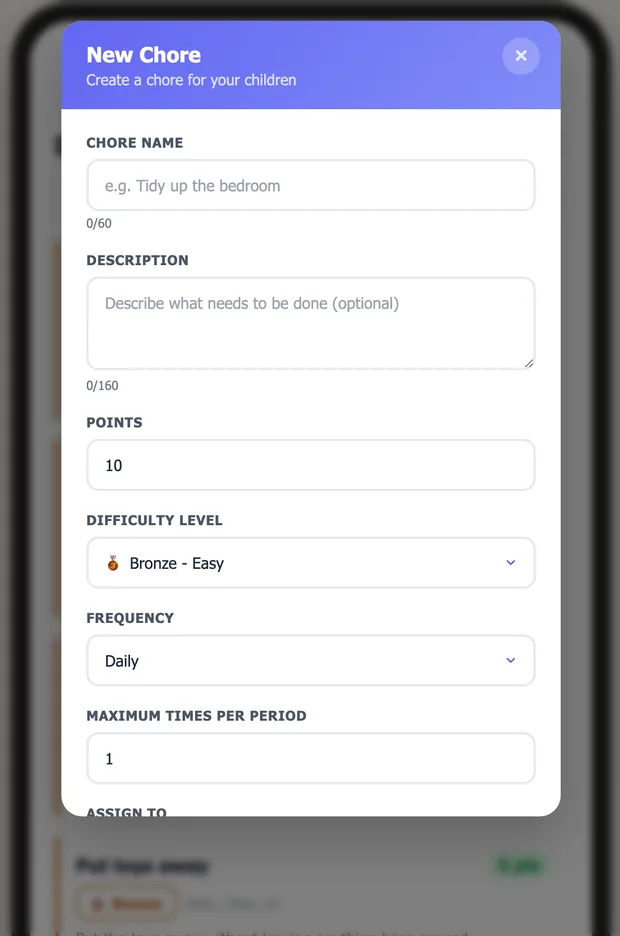
Tap New. Give it a name, points, a difficulty level and a frequency. Maximum times per period caps how often it pays — a daily chore with a maximum of 2 can only earn points twice a day.
The daily cycle
When your child has a phone
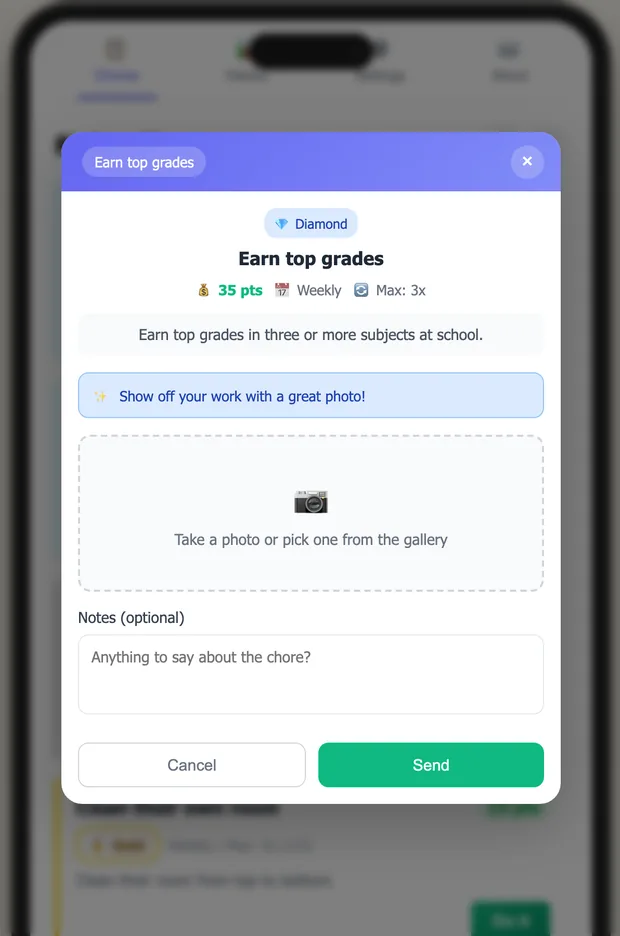
Your child opens Chores, picks one and taps Do it. They add a photo as evidence and can leave a note about what they did.
When your child has no phone
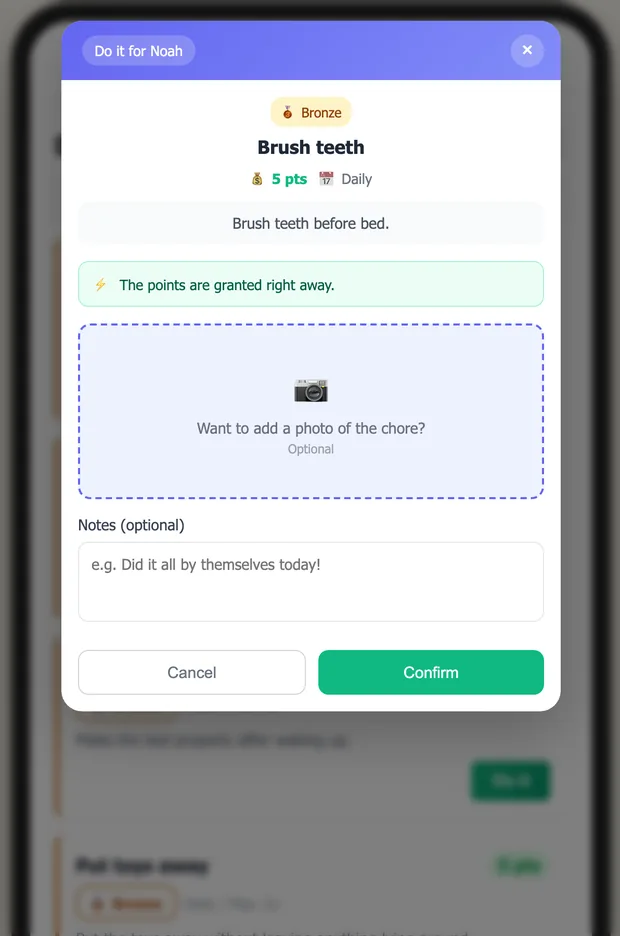
A Do Chores section appears at the top of your Chores tab. Pick the child, pick the chore, and register it for them.
Reviewing the evidence
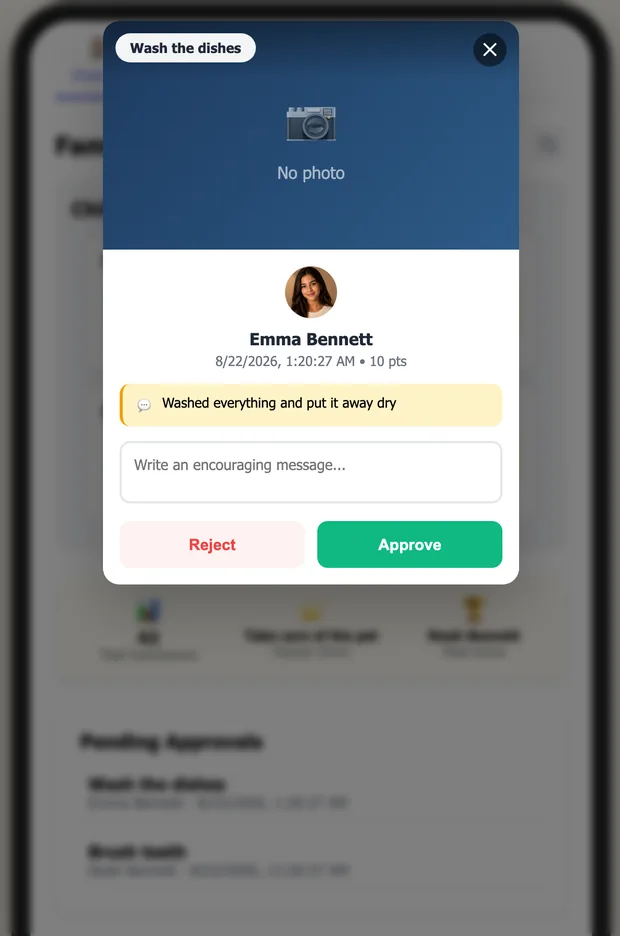
Pending chores appear on your Overview. Open one to see the photo, the child's note and the points at stake.
Approving several at once
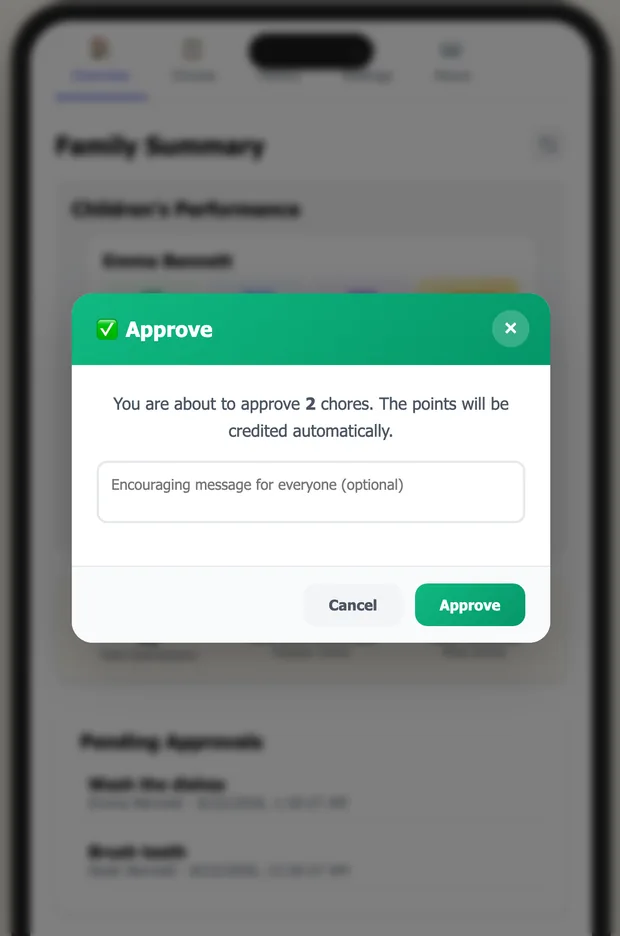
When several chores are waiting, select them and approve in one go. The note you write goes to all of them.
What your child sees
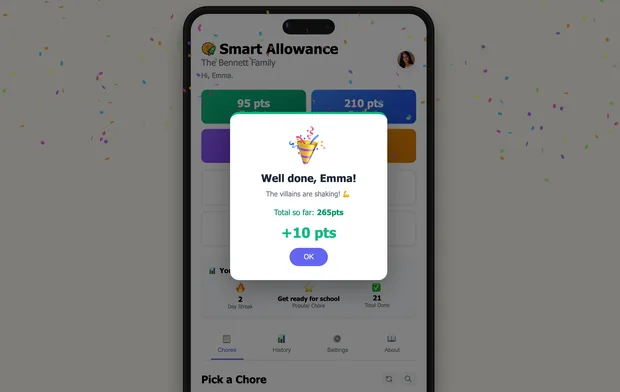
Approved chores show up as a celebration on the child's screen, with the points earned and the running total.
Money
Setting the conversion rate
Settings → Conversion Rate defines what 10 points are worth. The example updates as you type, so you can see what 100 points will cost you.

Paying the allowance
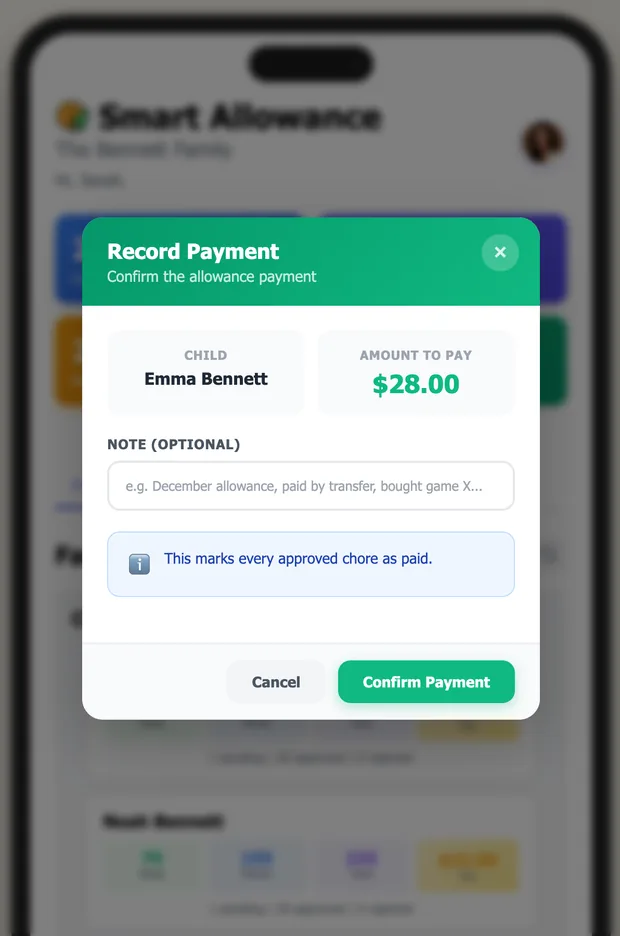
The yellow card on each child's row shows what you owe. Tap it, confirm the amount, and every approved chore is marked as paid.
Family and account
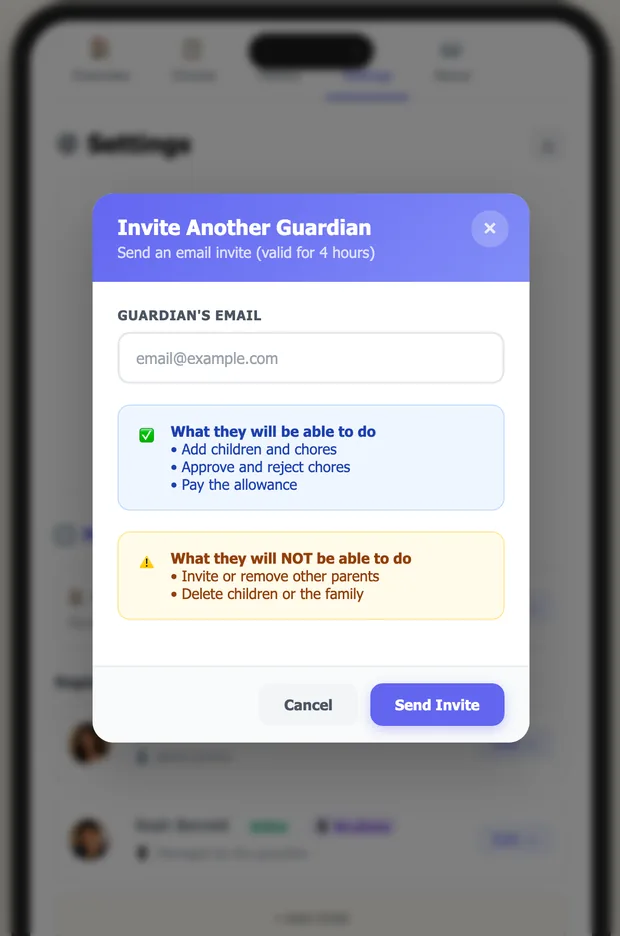
Inviting another guardian
Send an invite by e-mail from Settings. The other guardian can add children and chores, approve and pay — but cannot remove other guardians or delete the family.
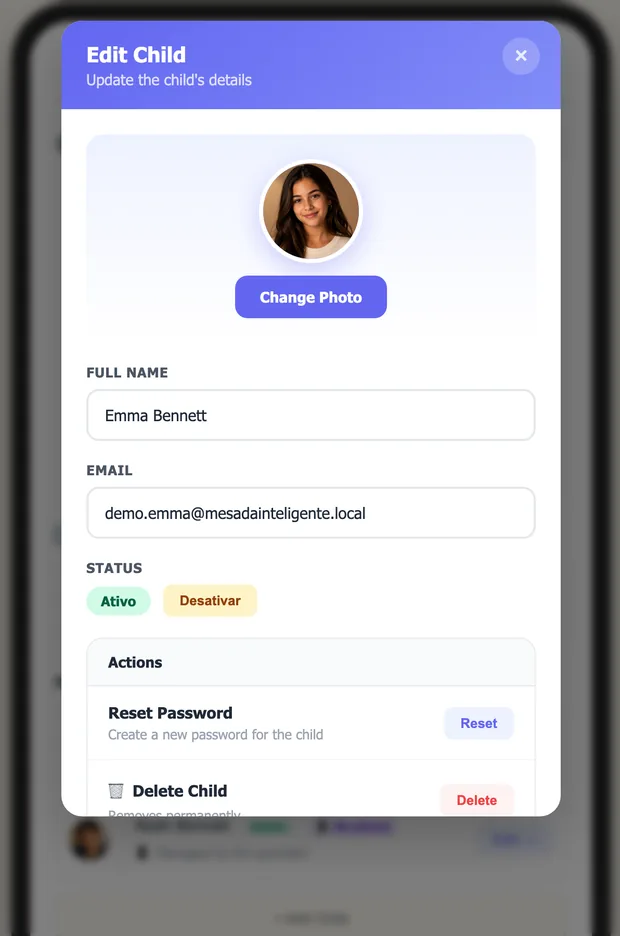
Editing a child
Change the photo, the name, or deactivate the child without deleting their history. This is also where you reset their password.
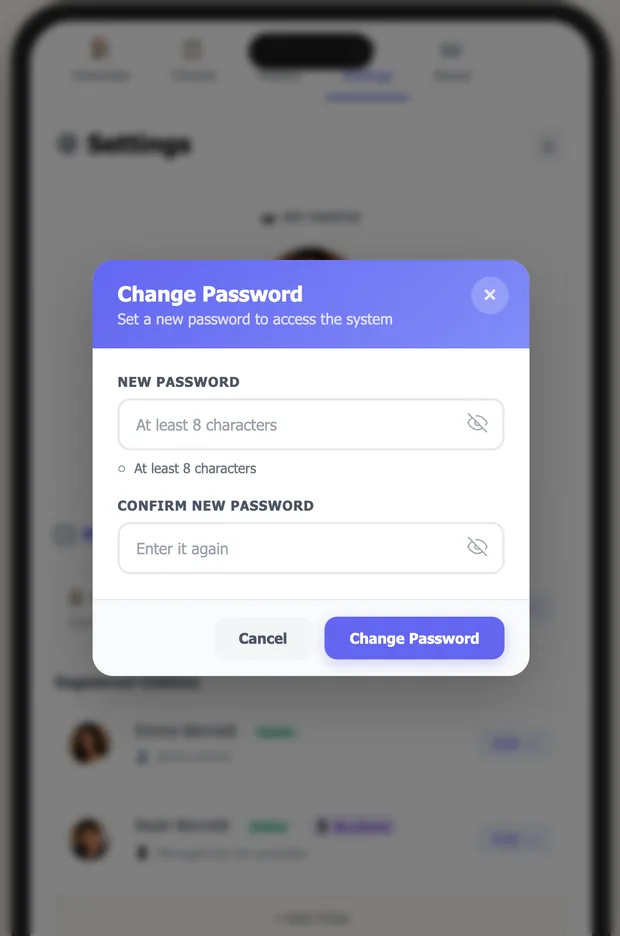
Changing your password
Your own password lives in Settings, under your profile.
Reference
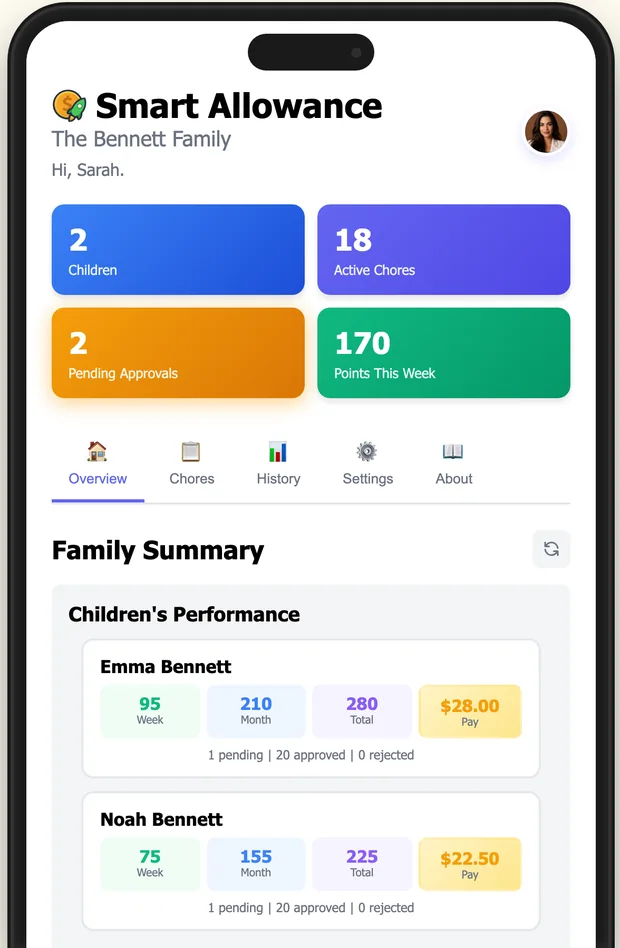
Your Overview
Everything at a glance: each child's points for the week and month, what you owe, and what is waiting for approval.
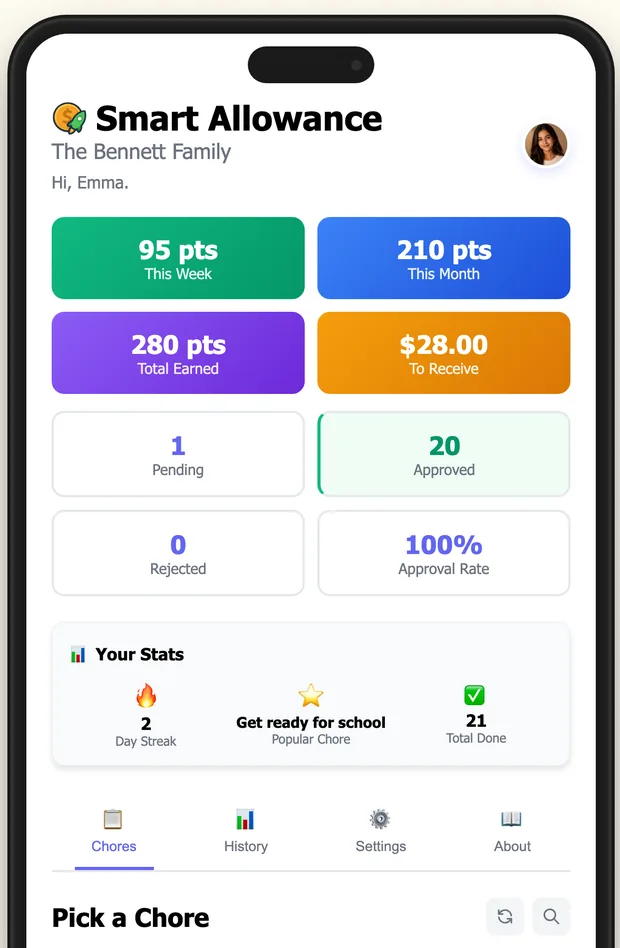
Your child's home screen
Points this week and month, total earned, the amount to receive, and how many chores were approved.
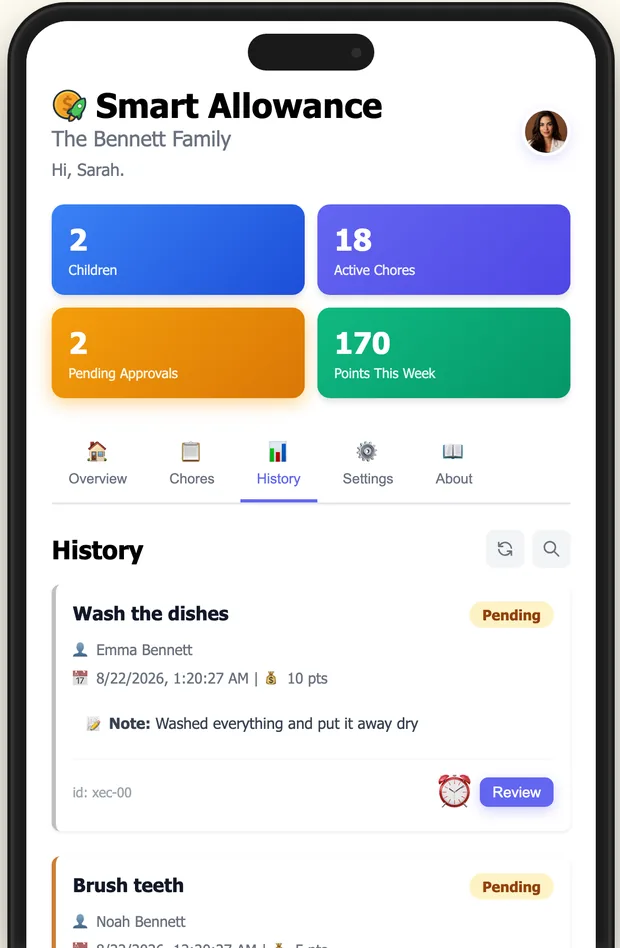
History
Every chore ever submitted, with status, date, the child's note and your feedback.
The About tab
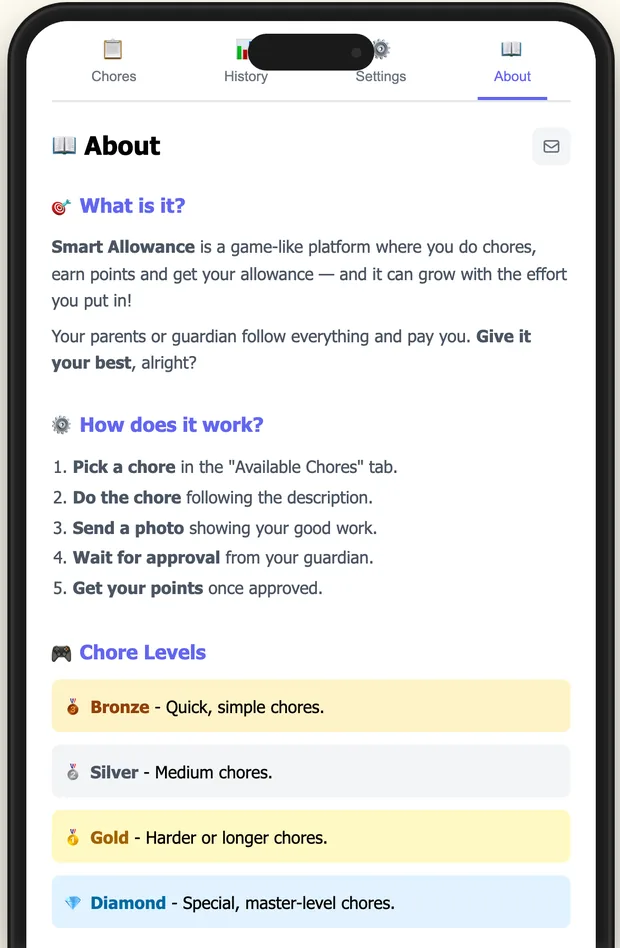
Both dashboards have an About tab explaining the cycle and the chore levels — useful the first time your child opens the app.